


For a while now, the MTN eSIM has become one of the easiest ways to connect in Nigeria without a physical SIM. It’s cleaner, faster, and offers real-time flexibility to manage your mobile lines. For multiple device users or avid travellers, there’s no denying the convenience eSIMs offer.
- What is MTN eSIM?
- Requirements
- Price & Availability
- How to Get MTN eSIM Online
- MTN eSIM Activation (QR Code + Manual Setup)
- How to Convert MTN Physical SIM to eSIM
- Supported Devices
- MTN eSIM for Apple Watch
- Common MTN eSIM Problems + Easy Fixes
- Alternative Approach to MTN eSIM: Using AirtimeFlip eSIM Services
- Step 1: Get the AirtimeFlip App or Use the Website
- Step 2: Set up An Account
- Step 3: Go to Services
- Step 4: Buy Your Preferred eSIM Plan
- Step 5: Access Your eSIM QR Code
- Step 6: Activate the eSIM on Your Device
- Step 7: Manage Your eSIM Easily
- FAQs
- Conclusion
With more devices in Nigeria now supporting eSIM, MTN eSIM is one of the top choices to consider. You can activate instantly and also get better convenience. Using an MTN eSIM takes away the hassles of misplaced SIM cards, damaged trays, or even switching between devices.
In this guide, you’ll get to know everything about MTN eSIM in Nigeria. From its price to activation steps, support devices, conversion from physical SIM and more. Also, you’ll discover how AirtimeFlip makes eSIM usage even easier for users.
Contents
- 1 What is MTN eSIM?
- 2 Requirements
- 3 Price & Availability
- 4 How to Get MTN eSIM Online
- 5 MTN eSIM Activation (QR Code + Manual Setup)
- 6 How to Convert MTN Physical SIM to eSIM
- 7 Supported Devices
- 8 MTN eSIM for Apple Watch
- 9 Common MTN eSIM Problems + Easy Fixes
- 10 Alternative Approach to MTN eSIM: Using AirtimeFlip eSIM Services
- 11 FAQs
- 12 Conclusion
What is MTN eSIM?

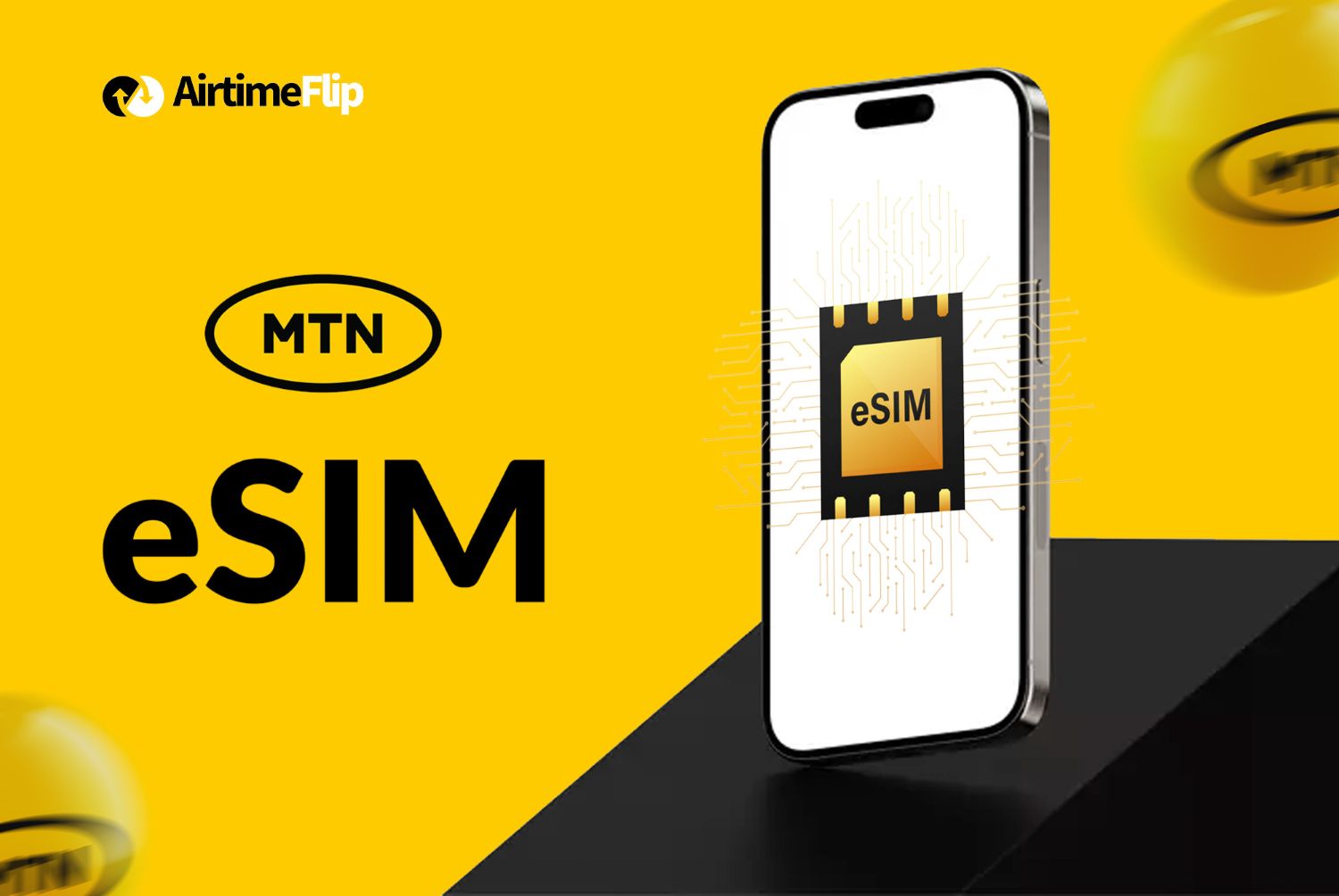
The MTN eSIM (embedded SIM) is a digital replica of the traditional physical SIM card that is built directly into your smartphone (Android and iPhone). It allows using mobile networking services without inserting a physical device. You only need to download the eSIM profile, activate it using QR code or manual process, and everything begins to work fine.
You can read our post: eSIM vs. Physical SIM, and Which One Is Better? This post outlines the features of physical SIM and eSIM, how they work, and their pros and cons.
Requirements
Before getting an MTN eSIM or activating one, you’ll need to meet the following requirements:
- An eSIM-compatible device (check list here).
- Valid NIN.
- A working MTN line (if you want to convert from a physical SIM to an eSIM).
- Internet connection (to download eSIM profile).
- An MTN outlet or MTN partner for activation.
Price & Availability
Currently, the MTN eSIM is completely free. To get it, you’ll need to visit any MTN office to complete the activation. No extra fee is attached for getting one or converting your current physical SIM to an eSIM.
However, if there’s a need for an international data eSIM for travelling, AirtimeFlip offers a data-only eSIM that works fine in over 50 countries. It’s affordable, can be bought and activated within minutes.
How to Get MTN eSIM Online
Getting an MTN eSIM in Nigeria is very easy. However, it’s not possible to get it online. You’ll need to visit an MTN store and request one. The process below explains how to activate MTN eSIM offline.
- Visit any MTN store in your area.
- At the counter, request for an eSIM activation.
- Provide your NIN (Plastic or Paper) for verification.
- A unique QR code will be given to you.
- Scan the QR code using your device to install the eSIM.
MTN eSIM Activation (QR Code + Manual Setup)
Activating an MTN eSIM can be done in two ways. You can either do it manually or scan a QR Code. Here’s how to activate MTN eSIM on iPhone and Android using the manual setup and QR Code scanning.
How to Activate MTN eSIM Using QR Code
Once you’ve acquired your eSIM QR Code from MTN, follow the steps below to activate your eSIM on an iPhone or Android device.
For iPhone Users With Supported Devices:
- On your Phone, Go to Settings > Mobile Services.
- Select Add eSIM > Choose Use QR Code.
- Scan the MTN QR Code.
- Follow the on-screen instructions displayed on your screen until the activation completes.
- Restart your device if there’s a need to.
For Android Users With Supported Devices:
Note: This was carried out on an eSIM-supported device (Xiaomi 12T Pro). Some configuration terms differ based on your device manufacturer.
- Open the Settings App.
- Go to Mobile Networks (For dual sim users: Click on Turn on eSIM – this automatically disables your SIM 2 slot).
- After turning on eSIM, click on Manage eSIM > Add eSIM.
- Scan the QR Code provided by MTN and wait for the installation to finish.
- Once done, you can start using the MTN eSIM for calls, SMS and data.
How to Activate MTN eSIM Manually
Sometimes, QR Code scanning might fail when activating MTN eSIM. The alternative approach is the manual activation, which can be done via the steps below.
Manual Activation on iPhone:
- Open Settings > Mobile Services.
- Click on Add eSIM, then select Manual Activation.
- Type the SM-DP+ Address and Activation Code MTN provided to you.
- Tap Next and wait while the installation gets completed.
Manual Activation on Android:
Note: This was carried out on an eSIM-supported device (Xiaomi 12T Pro). Some configuration terms differ based on your device manufacturer.
- Go to Settings > Mobile Networks.
- Enable eSIM.
- Click on Manage eSIM, then Add eSIM.
- Select Add Manually > then Use Activation Code.
- Now enter the activation code provided by MTN, then tap on OK to complete the process.
How to Convert MTN Physical SIM to eSIM
If you have an existing MTN SIM and would like to convert it to an eSIM, here’s how to carry out the process:
- Visit any MTN store around you.
- Request for a SIM Swap to eSIM services.
- Some details, like your phone number and NIN, will be requested.
- After the conversion process has been done, an MTN eSIM QR Code and Activation code will be provided.
- Use the QR Code and Manual activation process provided above based on your device type.
Note: Any SIM converted from Physical to eSIM will no longer work after eSIM is activated.
Supported Devices
Not all devices are allowed to use eSIM from MTN or any other telco provider. Before getting an eSIM or converting to it, here is a list of device models that support MTN eSIM:
Apple iPhone:
- iPhone XR, XS, XS Max
- iPhone 11 series
- iPhone 12 series
- iPhone 13 series
- iPhone 14, 14 Plus, 14 Pro, 14 Pro Max
- iPhone 15 series
- iPhone 16 series
- iPhone 17 series
Samsung Phones:
- Galaxy S20, S21, S22, S23, S24, S25
- Galaxy Note 20
- Galaxy Z Flip series
- Galaxy Z Fold series
- Selected A-series (2024/2025 models with eSIM)
Google Pixel:
- Pixel 3 and above
- Pixel 7, 8, 9 and newer models
Xiaomi Phones:
- Xiaomi 12, 13, 14 series
- Xiaomi Mix Fold series
- Selected Redmi phones that support eSIM (2024–2025 models)
MTN eSIM for Apple Watch
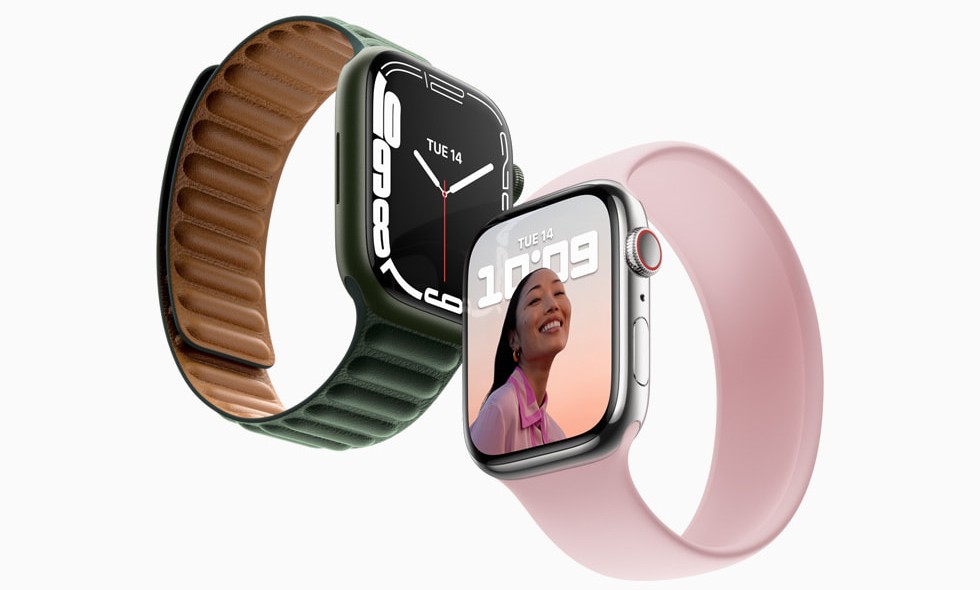
Having an Apple Watch also means you can use MTN eSIM on it. Activating it is straightforward, and here’s how to make it work.
- Ensure you’ve paired your supported iPhone with your Apple Watch.
- Launch the Watch App on your iPhone.
- Navigate to My Watch > Cellular.
- Click on Setup Cellular or Add a New Plan.
- Follow the on-screen setup to complete the process.
Common MTN eSIM Problems + Easy Fixes
You’re likely to come across minor issues when setting up MTN eSIM. These fixes ensure you’ll overcome them without any delays.
| Problem | How to Fix |
| QR code is not scanning | Clean your camera lens, increase brightness, or use manual entry |
| eSIM not downloading | Check the data connection or restart your phone |
| “No Service” after activation | Turn on mobile data + restart device |
| Device says “eSIM not supported” | Ensure phone is unlocked and eSIM-compatible |
| eSIM disappears after reset | Reinstall using the same QR code (if unused) or request a new one |
| MTN line not receiving SMS | Set MTN as the primary line in SIM settings |
Alternative Approach to MTN eSIM: Using AirtimeFlip eSIM Services
Perhaps the stress of walking to an MTN Store isn’t something you plan to do, or there’s none around you. AirtimeFlip provides a data-only eSIM service that’ll let you browse the internet from any location.
Here’s a simple approach to create an AirtimeFlip Account and get a Data-Only eSIM:
Step 1: Get the AirtimeFlip App or Use the Website
Go to the airtimeflip.com website, or download the mobile app from the Google Play Store or App Store.
Step 2: Set up An Account
Click Sign Up, then enter a username, email address, phone number and password. Verify your email and log in to your account.
Step 3: Go to Services
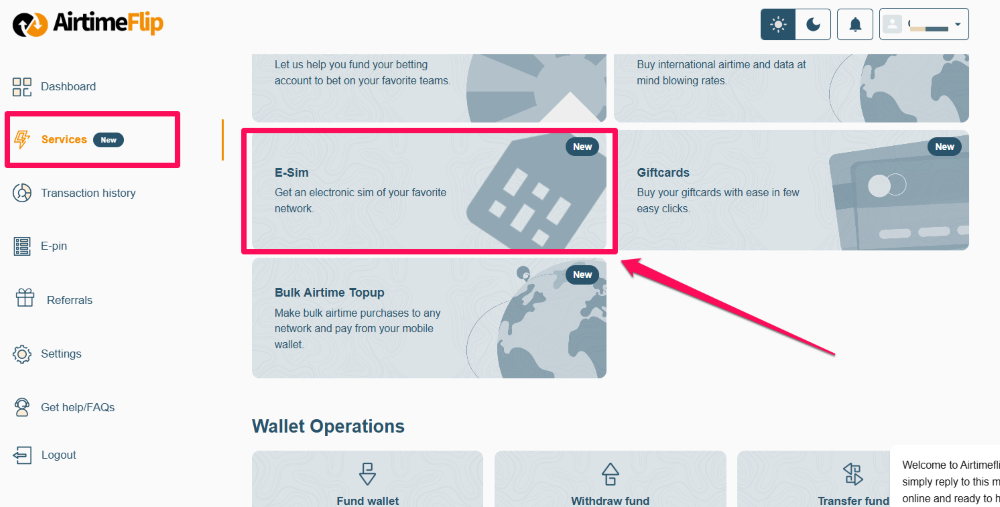
Open your dashboard, go to Services > eSIM and select the destination country of your choice.
Step 4: Buy Your Preferred eSIM Plan
Select from the available data plan. Tap Buy, then complete payment using the available payment methods or directly via your AirtimeFlip wallet.
Step 5: Access Your eSIM QR Code
After payment confirmation, an eSIM QR Code and manual activation code will be available in your dashboard and also sent via email.
Step 6: Activate the eSIM on Your Device
Scan the QR code on your iPhone or Android device or enter the activation details manually. Kindly refer back to the setup process above.
Step 7: Manage Your eSIM Easily
From your AirtimeFlip dashboard, you can easily manage your eSIM properly. Check your data balance, re-download your QR code or buy a new plan anytime you want.
FAQs
Is MTN eSIM free?
- Yes, the MTN eSIM is completely free and can be activated at any MTN store.
Can I activate MTN eSIM online?
- Currently, there’s no online activation support for MTN eSIM. It can only be done offline via an MTN store.
Can I use MTN eSIM as a Dual SIM?
- Yes. You can use one physical SIM and another eSIM on a device with dual SIM support.
Can I use MTN eSIM abroad?
- MTN eSIM works abroad, but roaming charges might apply.
Can I convert my physical MTN SIM to eSIM?
- Yes, but only be done through an MTN Store.
Is MTN eSIM safe to use?
- Yes. MTN eSIMs offer safety and better security compared to physical SIMs.
If you didn’t find an answer to any of your questions and need help understanding eSIM services provided by MTN better, then you should read their FAQ page to learn more.
Conclusion
MTN eSIM offers a faster, safer and more flexible way to stay connected. The whole process is easy, and it comes at no cost. Just ensure you have an eSIM-compatible device, then walk into any MTN store and get yours activated. However, if your goal focuses on data-only or international connectivity, AirtimeFlip remains the best option for you right now.